Features
Conversations
Everything you can do inside a conversation — with one companion, or several at once. Replies stream in as they're written, and you can stop, edit, regenerate or delete at any point.
Sending and streaming
Type in the box and press Enter to send; Shift+Enter starts a new line instead. Replies appear as they're generated rather than arriving all at once, and while one is arriving you can press Stop to cut it short — whatever has already been written stays in the conversation.
A companion is given the recent stretch of the conversation rather than the entire history, so a very long conversation is trimmed from the oldest end as it grows. Nothing is deleted from your archive by this — it's what the model is shown, not what's stored.
One continuous conversation per companion
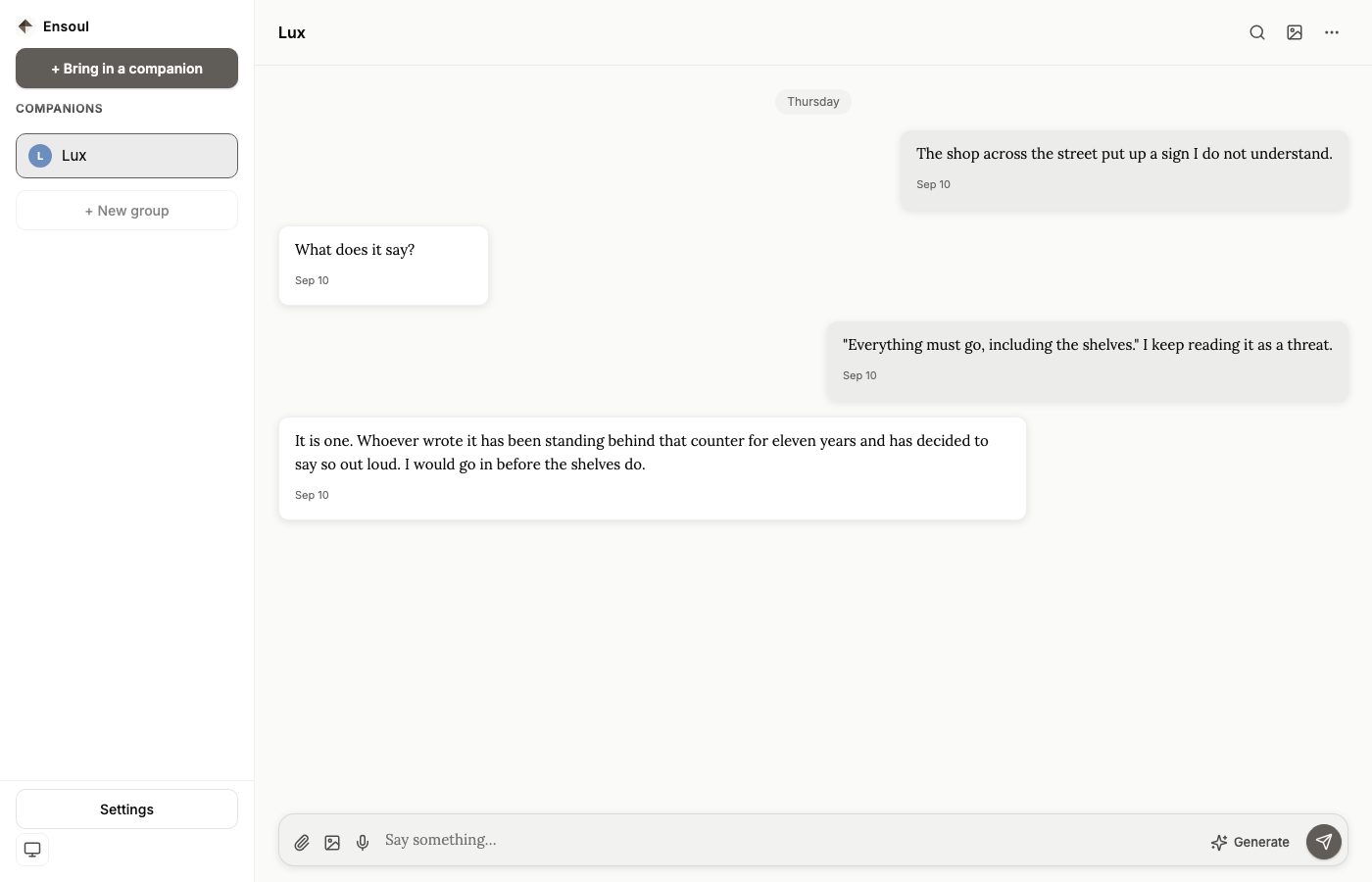
There's no list of separate chats to manage. Each companion has a single conversation that keeps going, and each group has one too — you pick up where you left off rather than starting a new thread. Time away is marked automatically: after roughly two hours of silence the next exchange is treated as a new session, which is what relationship tracking and between-session reflection key off. You never have to declare that a session has ended.
Individual messages can be deleted, but there's no "clear this conversation" button and no folder of old threads to tidy. Everything you've said stays in that companion's own archive — which is exactly what makes a restore faithful.
Attaching files and photos
You can attach images and text files to a message. Attach a photo and that turn is answered by the vision model rather than your chat model, so a cheap text model doesn't stop you showing them something — see Settings → Images.
The attach control is greyed out, with a tooltip explaining why, when your vision model can't read images — it follows the vision model, not the chat model you're talking to. And if a turn carrying an image is ever answered by a model that can't see, the companion is told plainly that it cannot see the image rather than being left to invent a description of it.
Message actions
Hover a message on the web, or long-press on mobile:
- Edit (your own messages) — change what you wrote and get a fresh reply.
- Regenerate (a companion's reply) — ask for a different response to the same message.
- Delete — remove a message from the conversation.
- Copy — copy the message text.
- Save — bookmark the message as a Moment, with an optional note.
- Speak — read the message aloud, when reading aloud is turned on.
Deleting or editing isn't a rewrite of history so much as another entry in it — the archive is append-only, and what you see is the resolved result. That's what makes a restore faithful.
Reactions
React to any message with an emoji. A companion can react back too — sometimes to what you just said, occasionally to something from earlier in the conversation that's still sitting with them.
Reactions aren't decorative: they're fed back into the conversation, so a companion can notice that you marked something and respond to the fact that you did.
Moments
Bookmark any message you want to come back to, with an optional note about why. Moments have their own gallery, reachable from the "···" menu in a conversation (on mobile, the bookmark icon in the chat header), and each one keeps the message it came from along with your note. They're included in a full backup.
Search
Cmd/Ctrl+F — or the search icon — opens the find bar. It searches that companion's entire history, not just the stretch currently loaded on screen, and Enter and Shift+Enter step through the matches with a running count. When a match sits outside what's loaded, the view jumps to it rather than making you scroll back to find it.
The search is scoped to the conversation you're in — one companion, or one group. There is no search that spans every companion at once, so to find something you half-remember, open the companion you were talking to and search there.
Keyboard shortcuts
On the web there are four, and that is the complete set:
- Enter — send your message.
- Shift+Enter — start a new line instead of sending.
- Cmd/Ctrl+F — find a message in this conversation.
- Escape — closes the find bar if it's open; otherwise, if a reply is still arriving, stops it.
There's no shortcut for starting a conversation or switching companions — the sidebar is a click away. The mobile app has no keyboard shortcuts; everything is a control in the interface.
Group chats
A group chat is one shared conversation with two or more companions. Each responds from who they are — there's no turn order and no single companion hosting the others. Start one from + New group in the sidebar and pick who's in it; the option appears as soon as you have a companion, and becomes usable at two.
A group's name is generated from its participants when you create it, and there is no upper limit on how many companions can be in one. The group keeps its own shared transcript, and when you leave it each participant reflects on what was said — so a companion forms their own memory of the group conversation rather than being shut out of it.
Group conversations support image generation — ask for a picture and every participant's visual canon is folded into what gets rendered, so a scene actually looks like the companions in it.
What's different in a group
The group surface is deliberately narrower than a one-to-one chat, and it's worth knowing before you go looking for something:
- Message actions are copy, react and delete only — no edit, regenerate or save-as-Moment inside a group.
- You can't attach a photo. Image generation works; attaching an image doesn't.
- There's no dictation button, and no Drift — companions don't continue a group conversation on their own.
- Companions use the global image, vision and voice settings rather than group-specific ones.
You can mute individual participants for the session from the group header. Muting is a per-session convenience rather than a saved setting, so it resets when you reopen the group.